


My goodness, it’s been a while, hasn’t it? But I promised a long time ago to round out this let’s play set-up series with a description of how I attached four consoles (three of which are more current-generation) to a CRT-TV that only had one coaxial input.
If there’s interest, I can also post about how I have things hooked up to my new (!!) HDTV, but that’s a much simpler set up.
Anyway… This is a photo of the full set-up without any sort of recording device attached:
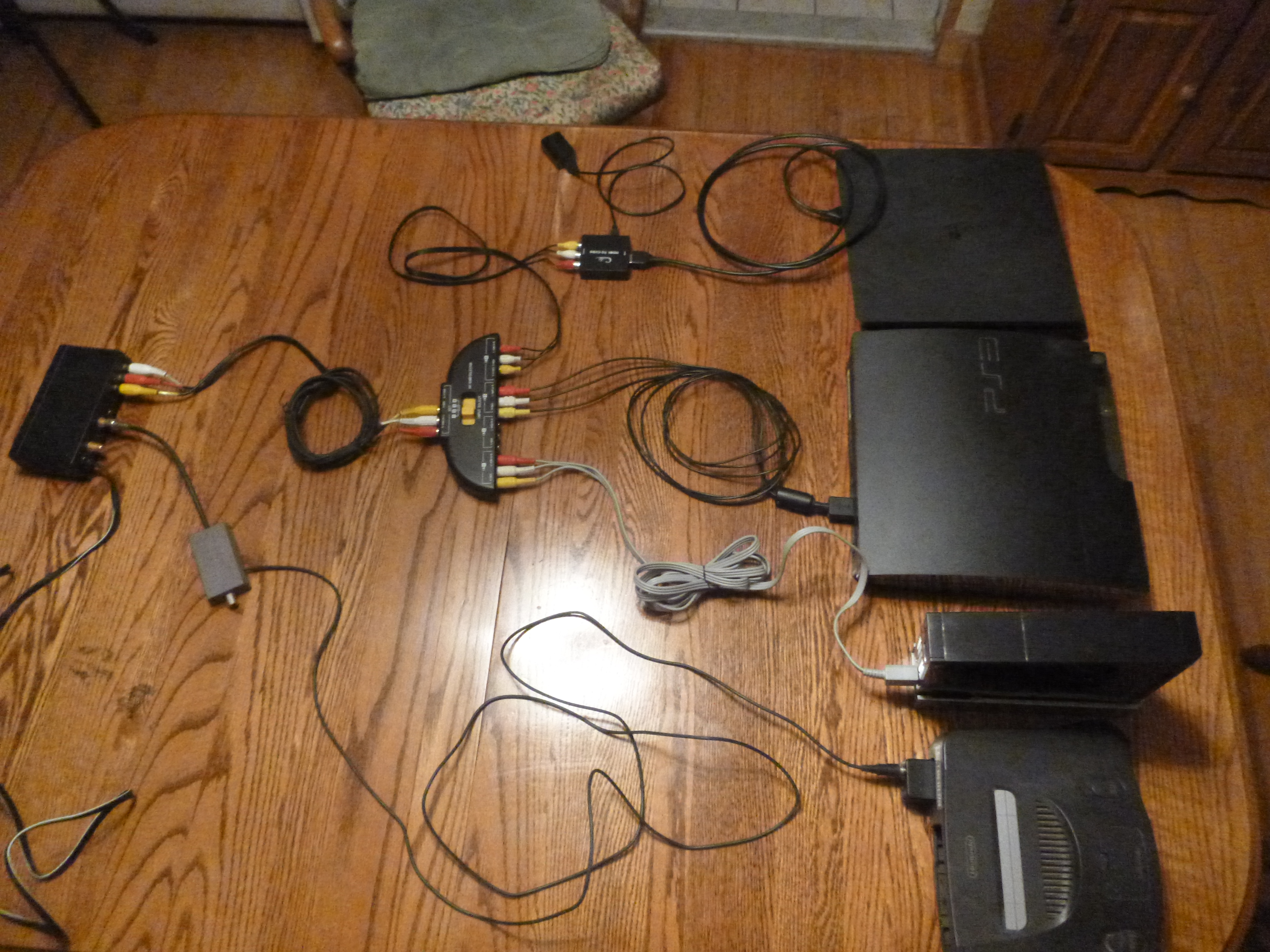
Here it is again, labeled:

Let’s start with the easiest parts, first.
Wii and Playstation 3
These use RCA output cables (yes, I know that the PS3 technically has an s-av cable, but I’m calling it an RCA just so everyone knows what I’m talking about), and so they were just connected to the 4-channel selector in the center, which was then connected via RCA cable to an Rf Modulator that we got at Radio Shack years ago. From there, I connected a coaxial cable to the “Coaxial out” port, which went to the “Coaxial In” port of the CRT TV.
Nintendo 64
The console here has a coaxial output, and so it was connected to the Rf modulator directly via its “coaxial in” port. Interestingly, this meant that it pretty much overrode any other console that was on at the time (yes, I checked… for science).
Playstation 4
The Playstation 4 doesn’t have any sort of RCA cable, so I invested in an HDMI to RCA converter box (pictured above). It requires its own power source, and needs to be set to either NTSC or PAL (via a toggle switch on the side), depending on where you live (as far as I can tell). From there, the RCA cable is connected to the channel selector.
Channel Selector
This is the central hub for all things gaming. With my television, I simply had to select the switch that corresponded to the console I wanted to play on, and turn the console on. Anything happening on the television was overridden with the game. I didn’t have a cable box, but I imagine the selector could be connected to the box, which would then be connected to the television, and work similarly. After being put on channel 3, of course 😉
Recording
I set up the Playstation 3 for recording. I imagine the PS4 follows similar principles, but since I didn’t record any games on the PS4 before getting the new television, I can’t be sure. But here’s how I got this jumble of wires to record some gameplay footage.
Just as a reminder, I’m using the Hauppauge HD PVR2 Gaming Edition that I talked about here. All the cables came with the device unless otherwise stated.
1 First of all, disconnect the RCA cables from the PS3. Then, attach the component cable (red, blue, green, with red and white audio cable) from Hauppauge to the s-av port in the PS3 (where the rectangular part of the RCA cable was attached originally).

2. Then attach the component cable to the component-to-A/V converter cable (short cable under knot of wires, above). Then, plug the A/V cable into the “A/V In” port on the Hauppauge (below)

3. You’ll notice a few other cables in the above picture that we haven’t talked about. On the far left is the power cable (don’t plug into a power source until everything is connected, trust me). The second-to-left cable (with the white wrap on it) is a USB cable that connects to your computer.
4. On the far right is the next cable to connect. My (used) Hauppauge came with only one HDMI cable (I think they’re supposed to have two), and this was it. You’ll need a total of 3 HDMI cables for this set-up. Connect one of them to the “HDMI Out” port.
5. Now, in theory this signal would only have to go to the television (and that is the case with my new TV). However, with the old television, this output signal for some reason also needed to go to my computer before the picture would show up on the television. If you want to try skipping this and see if your set-up works differently than mine, skip ahead to Step 6.
I invested in an HDMI splitter (which also needs it own power source). Connect the HDMI cable to the “HDMI In” port (so, the cable went “out” of the Hauppauge and “in” to the converter).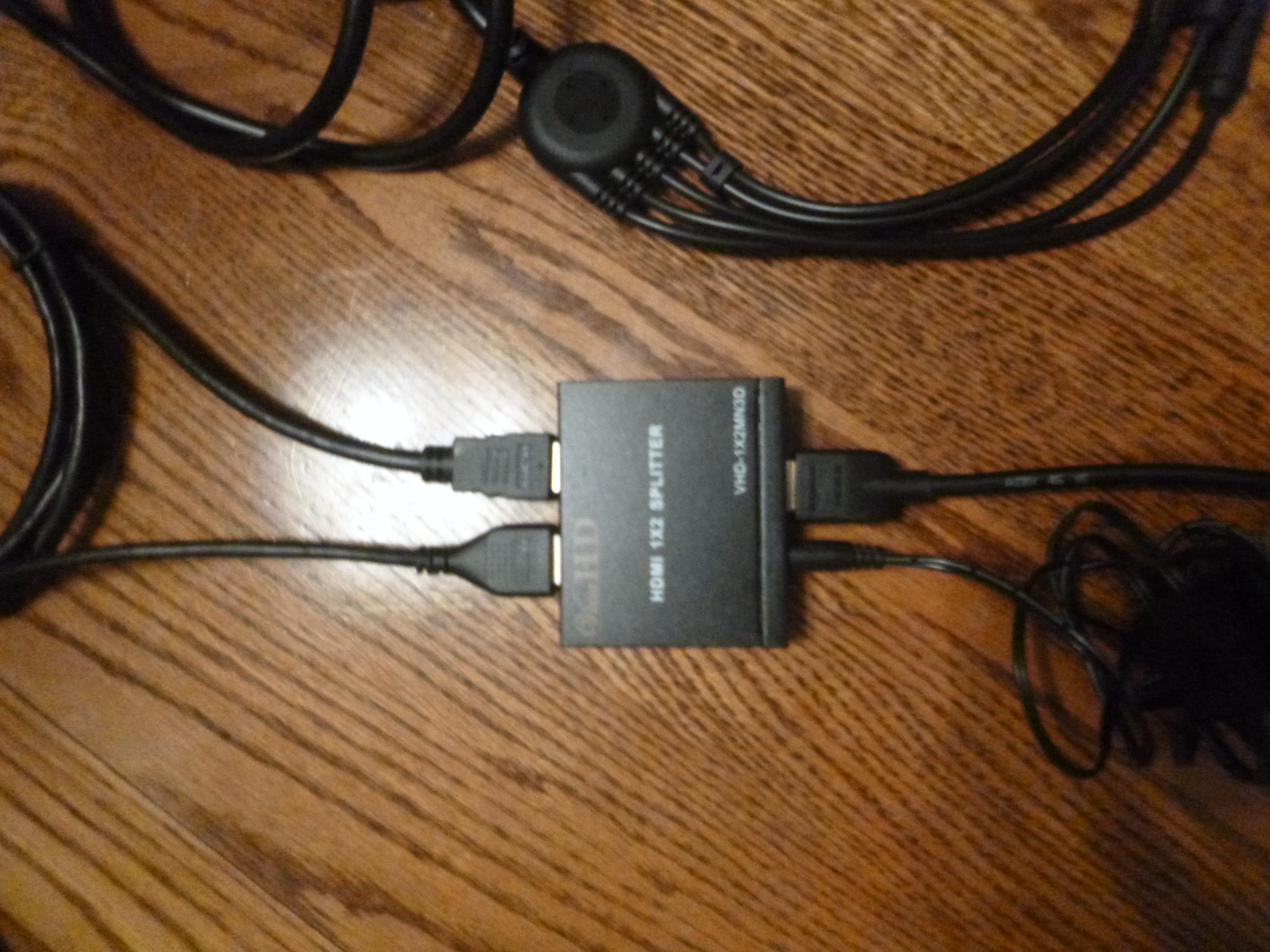
Connect two HDMI cables to the “out” ports of the HDMI splitter (shown above).
One of the “HDMI Out” ports went to my computer. The other “HDMI Out” cable went to…

6. …another HDMI to RCA converter (power source needed). Make sure that, if you are investing, you get a converter that converts from HDMI to RCA, otherwise the signal will go the wrong way and it won’t work.
Once that’s all squared away, connect the RCA cables to the remaining channel in the channel selector.
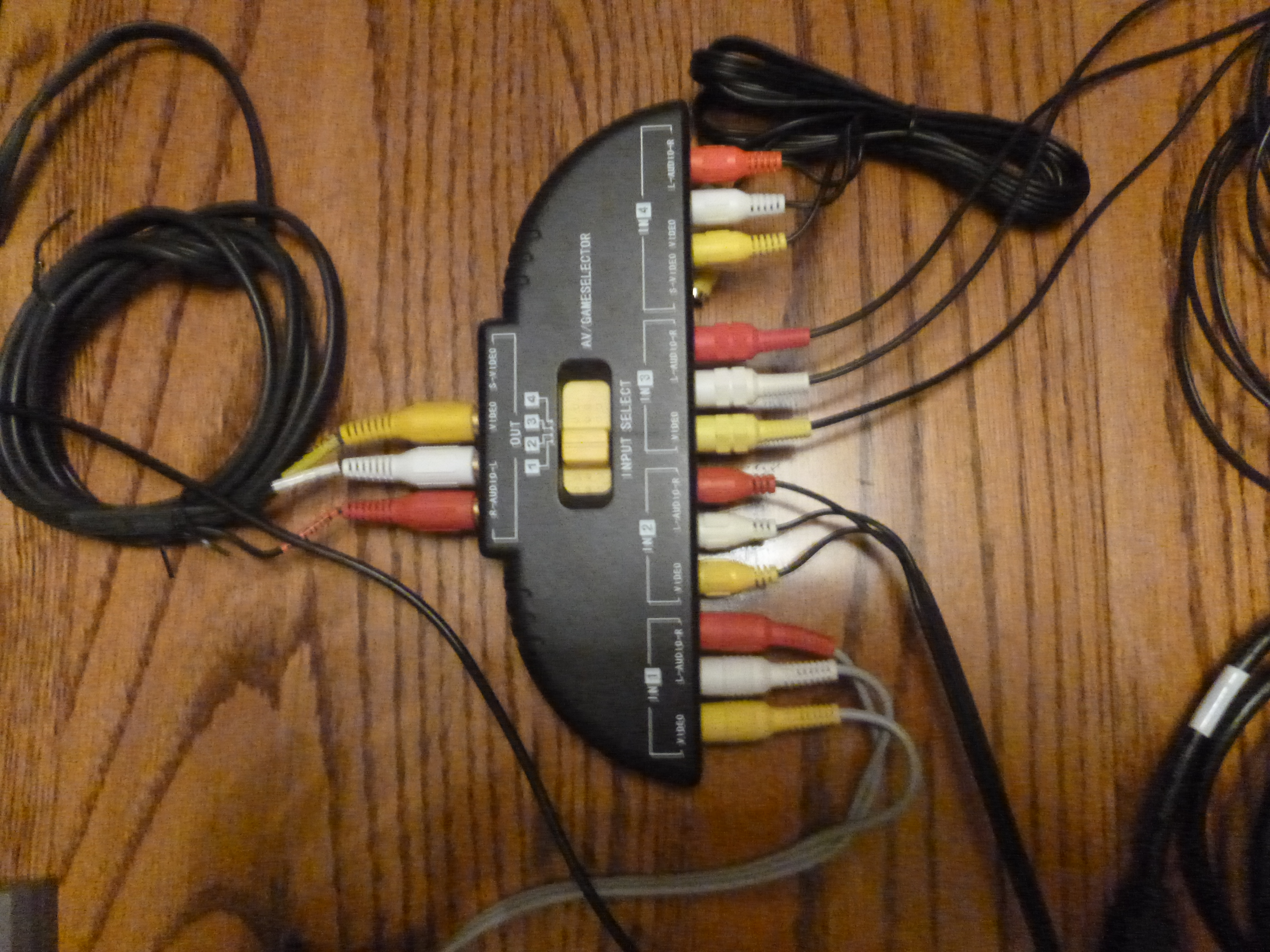
Once all the cables are connected, you can plug the Hauppauge into a power source. After it’s plugged in, it will flash green or blue. Turn on your console, and then open up the Hauppauge video capture program (yes, the order matters).
I did have to adjust the resolution on the PS3 in order to get the picture to show up, but pretty much as long as you don’t select the 1080p option, it should work (unless the television can handle it).
Otherwise, you’re all set to record some fabulous footage off of your ancient CRT-TV!
It’s been a long time coming to this, hasn’t it? I’m still not sure what’s going on with the whole YouTube situation, but hopefully someone out there will find this information handy, even if it’s just to set up the capture device.
Do you want to know about my current set-up? What does your set-up look like (if you have one)? Let me know if you have any questions in the comments!
Thanks for stopping by, and I’ll see you soon!
~ Athena
What’s next? You can like, subscribe, and support if you like what you’ve seen!
– Support us on Patreon, become a revered Aegis of AmbiGaming, and access extra content!
– Say hello on Facebook, Twitter, and even Google+!
– Check out our Let’s Plays if you’re really adventurous!



 Ambigamingcorner
Leave a reply to Athena | AmbiGaming Cancel reply