


Another short post this week, because where I splurged on a microphone and all its fixings, I did not spend one red cent on editing software.
Well, technically.
A few semesters ago, I had to get a video camera for school in order to record myself working with clients for my clinical supervision. After purchasing a $46 camcorder (or whatever the term for the digital version is), I was delighted/frightened to find that it came with a video editing software. I needed to edit some of my videos for presentations I had to give for my supervision and didn’t want to drop another $70 on Sony Movie Studio Any Version at the time, and so, bracing for impact, installed Corel VideoStudio Pro X8 on my poor unsuspecting laptop.
Imagine my surprise to find out it’s quite the little video-editing-software-that-could!
It’s a very simple software, and it’s hard to mess up. I’ve used it to edit every single one of my videos, and it does everything I need it to do. I can add and delete video clips, add pictures, overlay music or other recordings, and layer them with ease. The software has an option for adding text to your video, which, if you’ve been keeping up with the later videos of the let’s play you know I’ve been using to add little color commentary to my already-colorful commentary. Of course, you can also split clips and delete sections easily. Even though it didn’t come with a manual (what is with these things not coming with manuals??), I’ve been able to either figure out what I wanted to do by clicking around or with a quick internet search on the rare occasion I was really stumped.
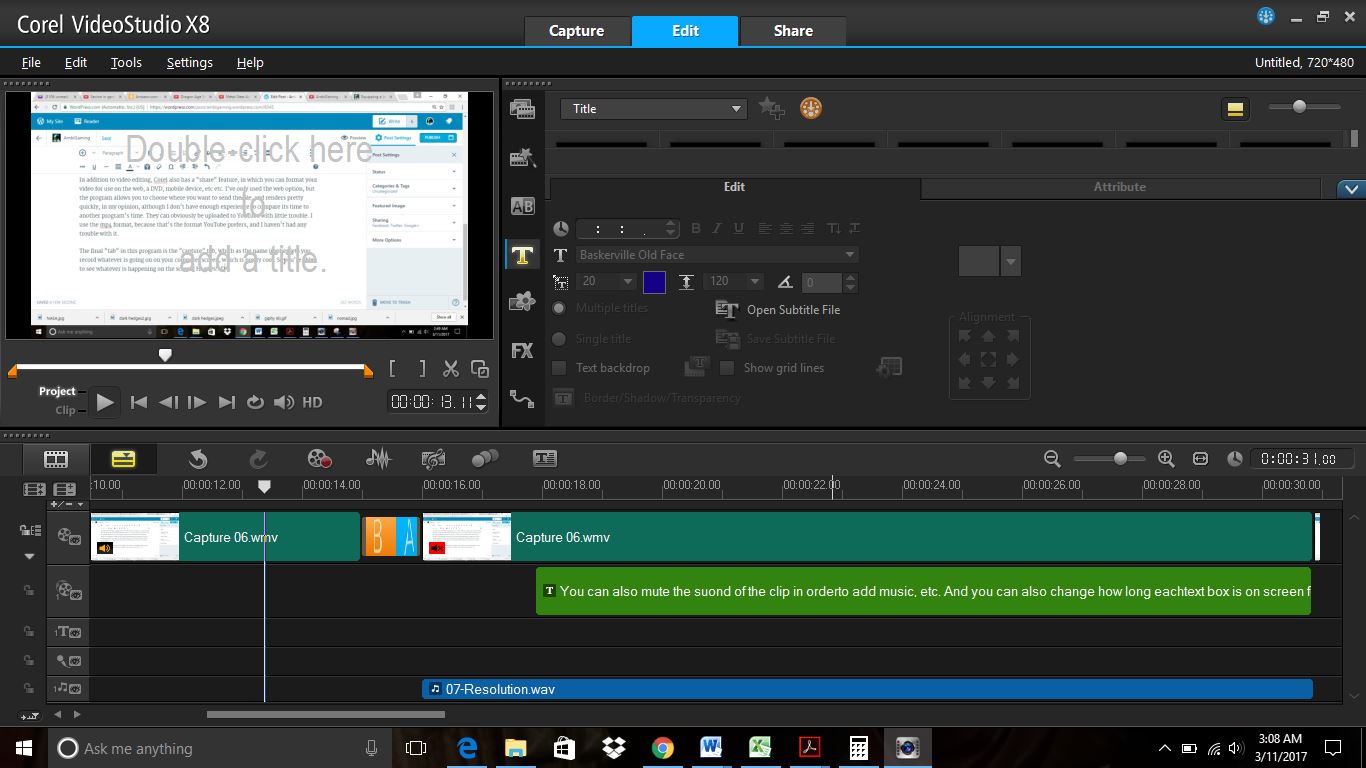
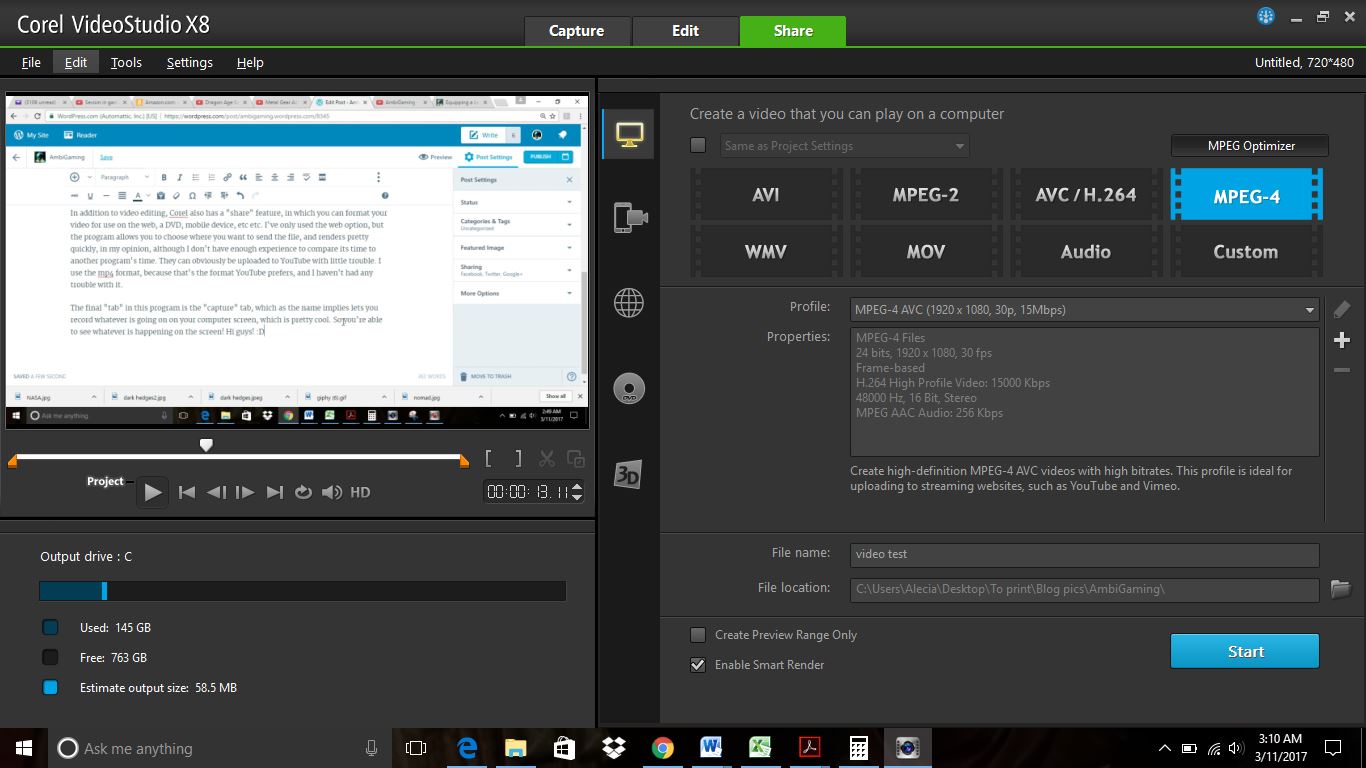
In addition to video editing, Corel also has a “share” feature, in which you can format your video for use on the web, a DVD, mobile device, etc etc. I’ve only used the web option, but the program allows you to choose where you want to send the file, and renders pretty quickly, in my opinion, although I don’t have enough experience to compare its time to another program’s time. The finished videos can obviously be uploaded to YouTube with little trouble. I use the mp4 format, because that’s the format YouTube prefers, and I haven’t had any trouble with it.
The final “tab” in this program is the “capture” tab, which as the name implies lets you record whatever is going on on your computer screen, which is pretty cool. So you’re able to see whatever is happening on the screen! Hi guys! 😀 (Author’s note: This makes sense later).

I really put this thing through its paces for an upcoming video about Reaper indoctrination (which will be linked here once it goes live), but for your viewing pleasure, here’s a little video I threw together that has two video clips, a transition, some text, and an added soundtrack (aka, the one in the first picture above). It took me about 5-10 minutes from start to finish, and that included some fumbling around as I remembered to take screenshots.
Ta da!
And just so you guys know, to take the screen captures I’ve just been using the Snipping Tool that comes with Microsoft (yes, I do all of this on a PC).
Thumbnails
For the personalized thumbnails I’ve been using, I use GIMP, at the suggestion of Greg Leighton and One Depressed Gamer. It’s great and I highly recommend it! It’s a free software available on the internet, and their site is here is you’re interested in finding out more. Very basically, it’s like a poor man’s Photoshop. I used Photoshop a lot in my various computer art classes in high school, and was able to pick up the basics again pretty easily, although GIMP has very nice online tutorials/manual for the uninitiated. Yes, “manual” is apparently the word of the day. At any rate, the program is simple to use and understand, and clicking around appears to be my preferred method of figuring things out, but save yourself some time and check out the tutorials if you’re not sure! 🙂
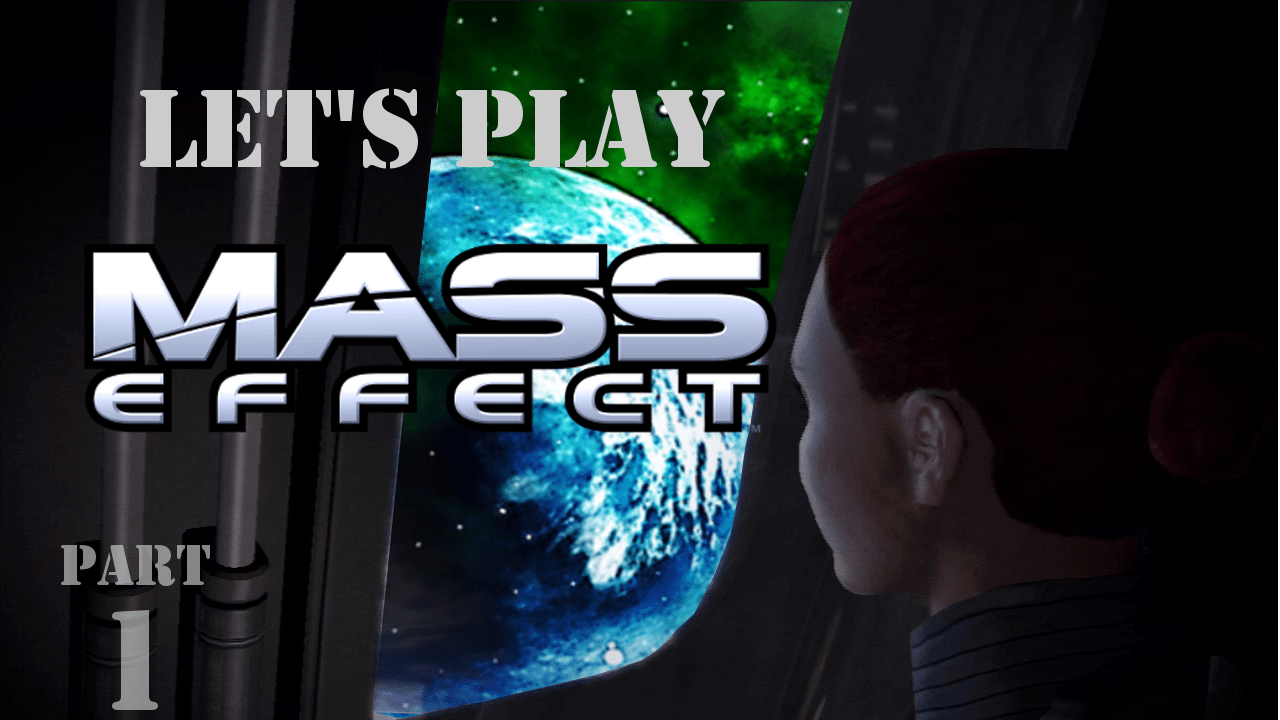
Within the program, images can be layered to create unique images. For instance, in the thumbnail below, I took one of my screen captures from the game, edited out the planet that Shepard is actually looking at, and layered the AmbiGaming globe underneath. I also layered in the “Mass Effect” logo, and of course the text boxes also got their own layers. I have a “master copy” to edit, so all I have to do is change the number as episodes continue, and exporting (remember to export!) to a file like .png or .jpg takes seconds.
Highly recommended!
I know I’m keeping you on pins and needles about my set-up, and I guess there’s not anything else I can procrastinate with… I’ll see if I can get some pictures (or maybe a drawing) of how it’s all put together for next week. Fair warning, I’m really swamped with my thesis and didn’t front-load these LP posts like I did for every other article going up this month (except this one), but I’ll do my best!
Thanks for stopping by, and I’ll see you soon!
~ Athena
Is your subscription to our blog not enough? Do you want more AmbiGaming? Of course you do! So you should definitely subscribe to our Let’s Play adventures on YouTube and follow us on Twitter @TheAmbiGamer!


 Ambigamingcorner
Leave a reply to John Cancel reply